Overview
S5 AI Assistant is an AI helper inside the Ignition Designer. It answers questions about your project, builds Perspective views from a description and edits the view you have open. It can also write scripts, Named Queries and tags after you approve them.
You bring your own AI provider: Anthropic, OpenAI, Google, or a compatible local or custom server. Compatibility varies by provider and model.
The assistant makes mistakes. Review what it produces and test it before you rely on it. Do not use it for safety functions.
Requirements
- Ignition 8.1.33 or later, or Ignition 8.3.0 or later.
- The Perspective module.
- A paid or trial Gateway license key.
- Internet access for initial online Gateway activation. Offline activation is not available.
- Windows Designers are the tested platform. Other operating systems have not been tested.
- Credentials for your AI provider, or the address of a compatible local or custom server.
Activate and manage licenses on the Gateway web page. Connected Designers share that Gateway license or trial. A local AI server does not replace online license activation.
Install the module
Download the file for your Ignition version from Account > Downloads on s5modules.com.
| Ignition | File |
|---|---|
| 8.1 | s5-ai-assistant-<version>-ignition81.modl |
| 8.3 | s5-ai-assistant-<version>-ignition83.modl |
Ignition 8.1
- Open the gateway web page and sign in.
- Go to Config > System > Modules.
- Select Install or Upgrade a Module at the bottom of the page.
- Choose the
.modlfile and install it. - Trust the publisher certificate when asked.
Ignition 8.3
- Open the gateway web page and sign in.
- Go to Platform > System > Modules.
- Select Install or Upgrade a Module.
- Choose the
.modlfile and install it. - Trust the publisher certificate when asked.
On the verified Ignition 8.1.55 setup, installing or removing this module did not require a Gateway restart. On Ignition 8.3, installing or removing it requires a Gateway restart. Plan for associated downtime, and follow any restart prompt shown by Ignition.
Close and reopen any Designer that was open during the install.
Get a license key
Trial: Sign in to your account, verify your email and request a trial for the module. A Gateway trial lasts 14 days from first successful online Gateway activation. Issuing a key, downloading or visiting the portal does not start or restart the trial. Connected Designers share the same Gateway trial and fixed expiry.
Subscription license: Go to Account > My Licenses, select Manage on the license and copy the License key.
The Gateway plan covers one Ignition Gateway and its connected Designers. The Integrator plan covers up to 3 gateways for one customer. Existing purchases retain their original terms; contact support for help with a historical entitlement.
Open the assistant
In the Designer, click AI Assistant in the Project Browser, or use Tools > S5 AI Assistant (Ctrl+Shift+A).
S5 Script IDE also uses Ctrl+Shift+A for Script Assistant. Use Tools > S5 AI Assistant to open AI Assistant directly.
Conversation tabs
In the full workspace, select + on the top row to open a new tab. Each tab keeps its own conversation and, in Views, its own draft. Tabs that do not fit scroll sideways. In the docked panel, use New and Tabs in the tab row.
Select × on a tab to close it. If a reply is running, select Stop first.
Activate and manage a Gateway license
A Gateway administrator activates and manages paid and trial keys on the Gateway page, not in Designer.
- Open the Gateway web page and sign in.
- Open S5 Modules > AI Assistant. On Ignition 8.3 it is in Platform; on Ignition 8.1 it is in Config.
- Paste the key for that module in Gateway Key and select Activate Gateway Key.
Initial activation requires an internet connection. Offline activation is not available. Trials and dated entitlements retain their fixed expiry. Cloud AI requires connectivity and any AI-provider usage is billed separately.
For monthly and yearly subscriptions, the module picks up a renewal automatically when the Gateway connects to the license server. Until it connects, the previous Active until date still applies. An expired license shows This license has expired. on the Gateway page. After renewing, your administrator can select Activate Gateway Key to restore access sooner.
Set up your AI provider
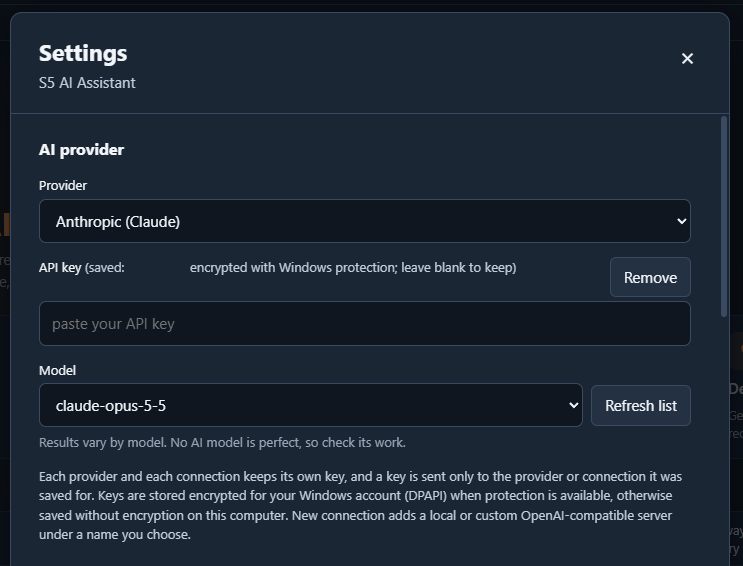
- Open Settings and go to AI provider.
- Choose the provider.
- Paste your API key.
- Choose a model. For Anthropic, OpenAI and Google, pick from the list; Refresh list asks the provider what your key can use. For an OpenAI-compatible provider or a local or custom server, add a connection, enter the server address and type the model id; Check asks the server whether it has that model. Not every provider and model combination has been tested.
- Save.
Results vary by model. No AI model is perfect, so check its work.
Your API key is sent only to the provider you chose. On Windows it is stored protected for your Windows account. Where that protection is not available, the key is saved without encryption and Settings tells you so. Remove deletes the saved key.
Usage is billed by your provider, not by S5.
Choose what is sent to the AI
Settings > What gets sent to AI has one switch for each kind of project data:
| Switch | Covers |
|---|---|
| Project structure | Names and paths of views, scripts, queries and tags |
| Resource contents | The content of a view, script or Named Query |
| Tag configuration | How a tag is set up |
| Live tag values | Current tag values |
| Database | Connection names, table names and query results |
| Images | Pictures you attach |
All are on at first. Turn off what must not leave your network. A gateway administrator can limit which switches are available. With a switch off, the assistant cannot read that kind of data. The line under each reply shows the provider, the model and the token usage.
Your configured provider API key authenticates requests to your chosen provider; it is not included as AI prompt content. Your module license key is used for licensing, not AI prompts. AI requests include your messages and the project information permitted by your data controls. Passwords or keys embedded in those messages or permitted project content are not automatically removed. Keep secrets out of content you share with AI. Messages already sent are not taken back when you turn a switch off.
The Gateway administrator’s AI Assistant data-sharing policy applies to licensed features. Depending on that policy, you may choose your categories, narrow the permitted categories, or find the settings locked. A license cannot bypass the restrictions. Script IDE has a separate module policy.
What your provider does with the data is governed by your agreement with that provider.
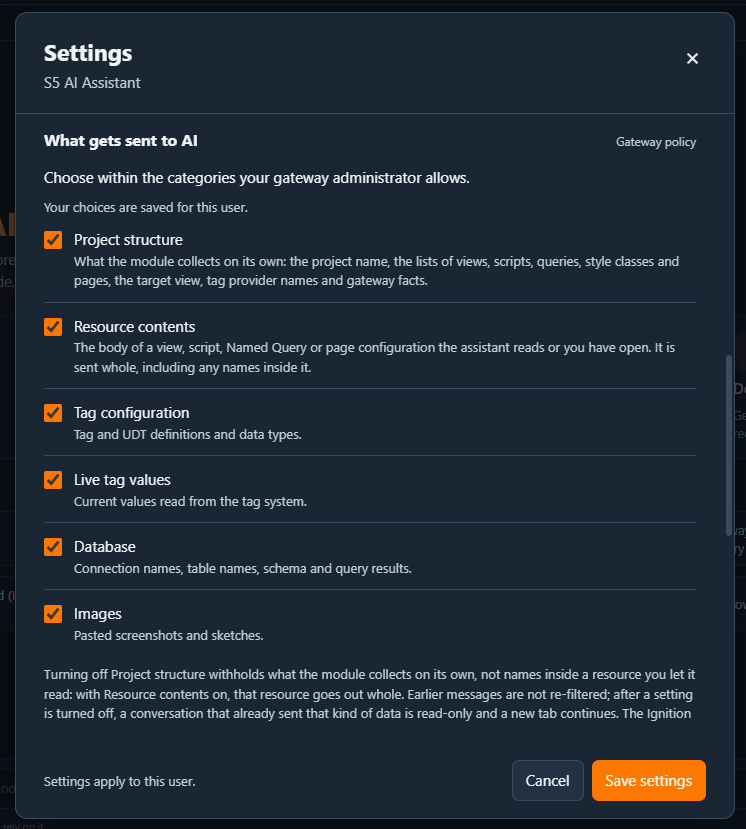
The six user data-sharing controls. Gateway policy can further restrict these choices.
Chat
Chat answers questions and makes changes across the project.
Type a request and select Send. The assistant can look things up on its own while it answers: project resources, tags and their values, database connections and tables, and the result of an existing read-only Named Query. These lookups follow the switches above.
A pulsing orange activity light indicates that the assistant is processing your request. During some steps, no new text or visible changes appear, so the interface may seem idle while processing continues.
Type @ to point at a resource and / to see the commands. You can attach up to two images to a message.
Changes from Chat
When the assistant wants to change something, it shows a card with what it will write. Nothing is written until you select Approve & write. Reject discards it.
| Change | When it takes effect |
|---|---|
| Script, Named Query, view, binding, component property | In the Designer. It reaches the gateway when you save the project |
| Tags, tag folders and UDTs | On the gateway at once. Existing tags are not overwritten. This cannot be undone from the assistant |
A card that is not answered expires after about ten minutes.
Approved changes from Chat are recorded in audit-log.jsonl in the module’s folder on your computer.
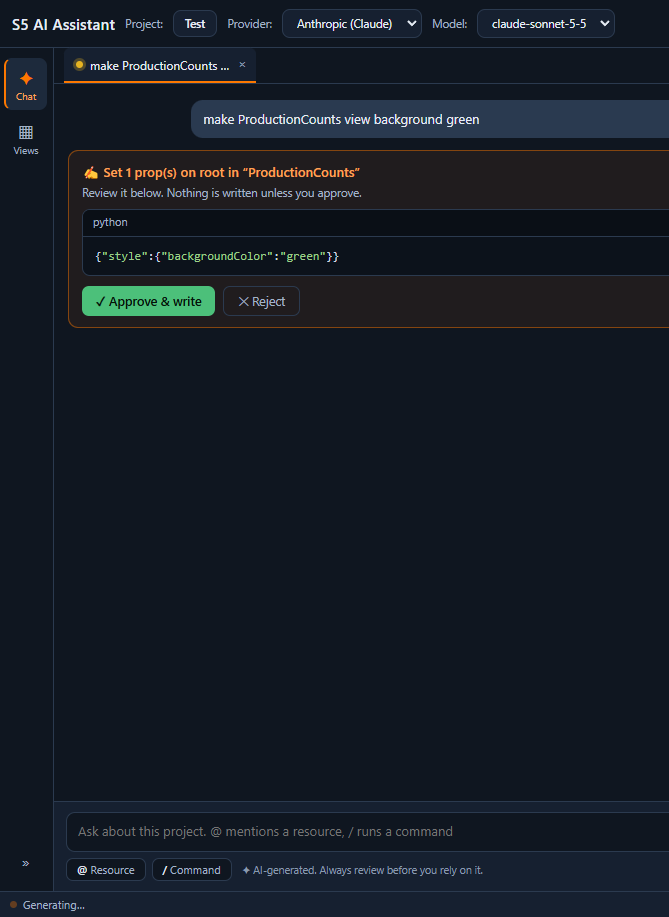
Regular Chat shows the proposed edit in the full workspace. Select Approve & write or Reject.
Build a view
Select Views on the left.
- Under View configuration, choose the view style and the size.
- Describe the view and select Send.
- Look at the result in Preview. Review lists what the module corrected and what needs your attention. view.json shows the source.
- Ask for changes in plain words until it is right.
- Set the View path and select Create view.
The view is added in the Designer and reaches the gateway when you save the project. If a view already exists at that path, choose another path.
To change a view that already exists, open it in the Designer and use the docked panel.
Edit an existing view
In Views, set Mode to Edit View and choose the project view you want to change. Describe the change, review the result in Preview, and select Update view when it is ready.
Update view asks you to confirm before it writes over a view that changed in the project since the tab loaded it. If the view is open in the editor with unsaved changes, the update is refused with Save the project first.
Live preview
If a follow-up edit leaves a previously displayed chart, table or value empty, that component is restored while the rest of the edit is kept. The reply identifies what was restored.
Preview shows a limited rendering of the view on your gateway. It does not run event handlers, component scripts, property change scripts, script transforms, expressions that call runScript, HTTP bindings, writes, or query bindings whose Named Query is not a read. The draft keeps that behavior. The Approvals tab lists it, and only what you select there is written when you create or update the view.
The module keeps a small set of its own resources in the project: a preview page and a view under AI Assistant, plus a temporary view for each preview session. The temporary view is removed when the preview ends. The page and the view under AI Assistant stay.
If the gateway’s Perspective trial has run out, Preview says so. Building views still works.
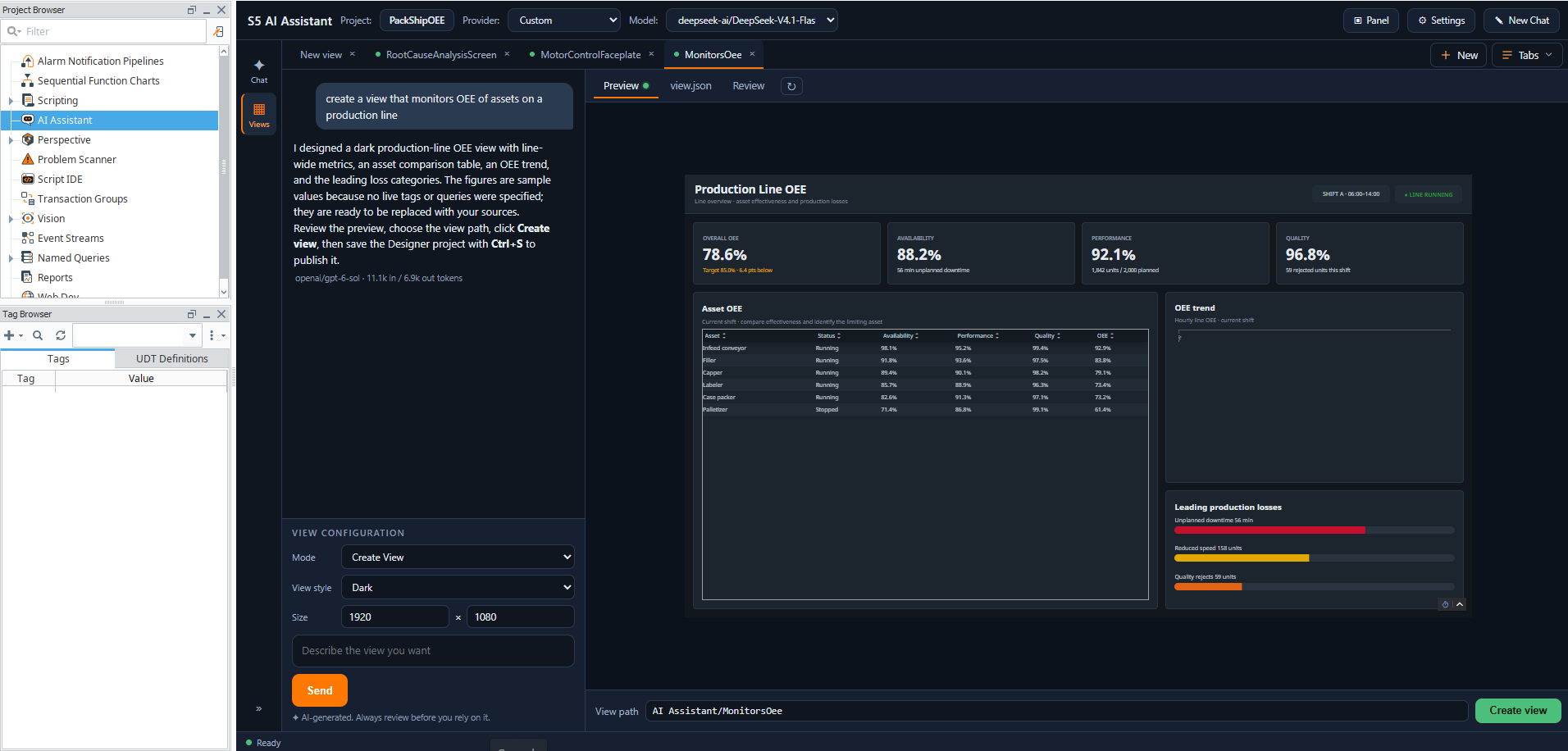
Views mode showing a generated dashboard in Preview.
Edit the open view from the docked panel
Open a Perspective view in the Designer, then select the S5 AI Assistant tab at the edge of the window, or the Panel button in the assistant. The panel sits beside the view and always works on the view you have open.
Describe the change. The panel shows a card listing each edit. How it is applied depends on the mode at the bottom of the panel:
| Mode | What happens |
|---|---|
| Plan | Approve the plan before the follow-up applies its view edits automatically. This does not switch your saved mode to Auto |
| Ask | Review a reply’s view edits together, then select Apply or Reject |
| Auto | View edits apply without a separate approval click |
Panel edits are made live in the view editor. They are not saved until you save the project. Undo on the card, or Ctrl+Z in the view editor, takes a change back.
Script, Named Query and tag writes from the panel still use approval cards.
A line that starts with Check: on a card names something that was applied and may not work yet, such as a tag that was not found.
You can dock the panel on either side, float it or put it in a tab group with other Designer panels.
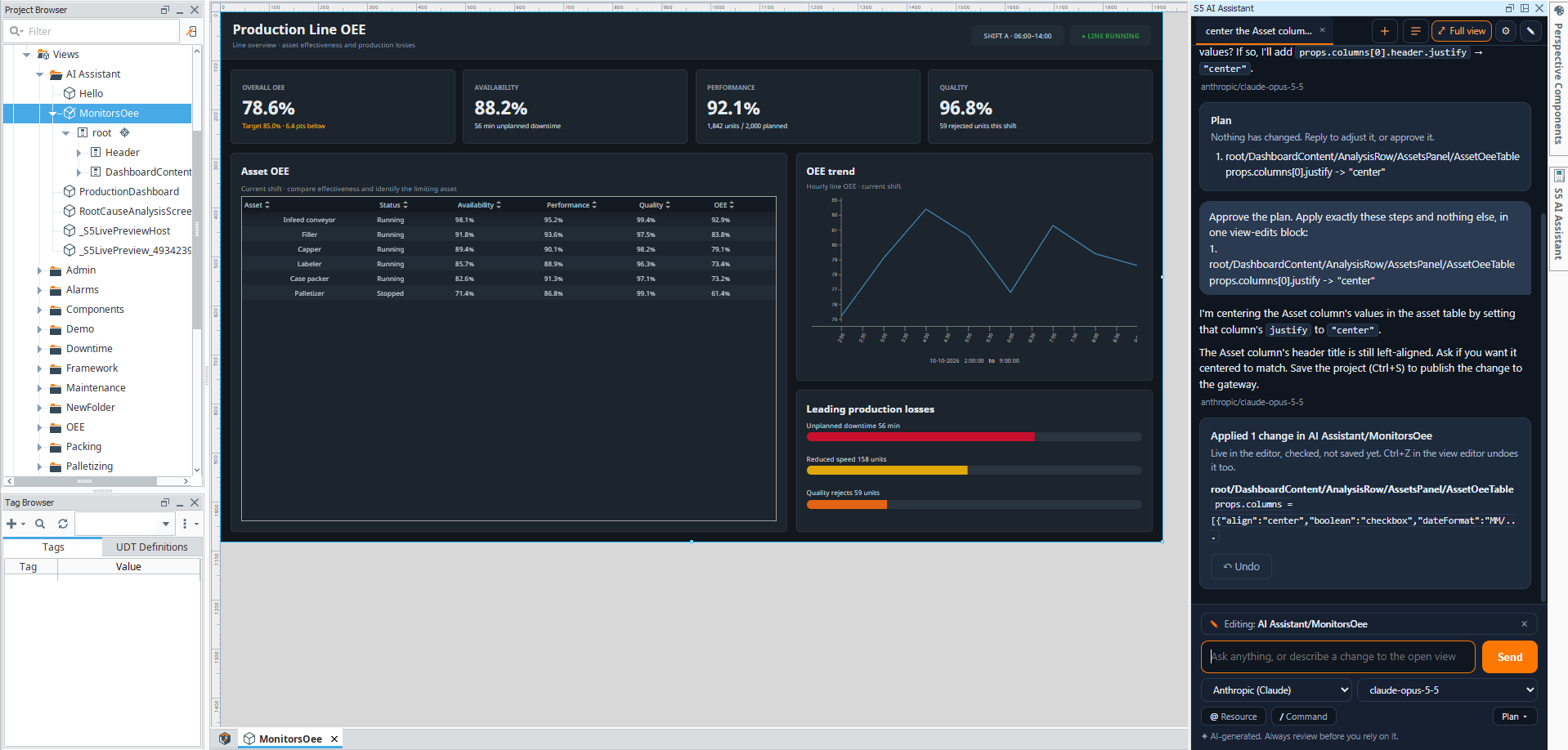
The docked panel after an approved change was applied to the open view.
Appearance
Settings > Appearance offers five themes: Dark, Carbon, Dark Blue, High Contrast Dark and Light. The choice applies at once and is kept for your user.
Limits
| Item | Limit |
|---|---|
| Message length | 16,000 characters |
| Images per message | 2, up to 5 MB each |
| Tabs generating at the same time | 3 |
| Conversation sent to the model | The last 20 turns |
| Conversation kept | The last 30 messages of each tab |
| Closed conversations kept | 40 in Chat, 40 in Views |
| Edits in one docked panel reply | 120 |
Conversations are kept on your computer for each gateway and project.
Troubleshooting
| Problem | What to do |
|---|---|
| The workspace says a license is required | Ask your Gateway administrator to activate or review the module license on the Gateway page |
| A Gateway key is refused in the Designer | Enter it on the gateway web page |
| “is not among the models the provider listed” | Check the model id, or use Refresh list |
| The provider says it is busy | Wait a moment and send again |
| The orange activity light pulses without new text | The assistant may still be processing. Some steps show no new text or visible changes; check for a reply or error before sending again |
| “Widen the panel to use the assistant” | Drag the edge of the docked panel to make it wider |
| The Property Editor became a tab at the edge of the window | Select its tab, then its pin button |
| A change was not applied | Read the reason on the card. The view is left as it was |
| Preview is not available | Check that Perspective is running and its trial has not run out |
| The switches under What gets sent to AI are locked | They are set by your gateway administrator |
To report a problem, open Settings > Help and copy the diagnostics. They contain version and license status information, the provider and model names and the module’s last few log lines. The log lines are not automatically redacted, so read them before you share them. Copying diagnostics does not send them to S5.
Support
- Email: support@s5modules.com
- Contact: https://s5modules.com/contact
- Report a bug: https://s5modules.com/report-a-bug
AI Assistant is available by monthly or yearly subscription. Updates and support are included while your subscription is active.
Cancel anytime. Your subscription runs to the end of the paid period. No refunds.
If a payment fails, we retry for 3 days and email you each day. After that the module stops working until you subscribe again. Subscribe again with the same key. You get the newest release.
See https://s5modules.com/pricing for current plans and prices.