Overview
S5 Script IDE is a code editor inside the Ignition Designer. It opens your project scripts, Named Queries, WebDev endpoints and gateway event scripts in one place, with tabs, completion, error checking and a Run button.
The full Script IDE workspace includes Script IQ, Script Assistant and inline AI editing. AI-provider usage is billed separately.
Included features
| Feature | Included |
|---|---|
| Editor, tabs and code navigation | Yes |
| Project scripts, Named Queries, WebDev and gateway events | Yes |
| Run and message handler Test | Yes |
| Error checking and quick fixes | Yes |
| Completion, including tag paths and database tables | Yes |
| Run Query | Yes |
| Find in Files | Yes |
| Script IQ code review | Yes |
| Script Assistant (AI chat) | Yes |
| Inline AI edit | Yes |
Requirements
- Ignition 8.1.33 or later, or Ignition 8.3.0 or later.
- The Perspective module.
- A paid or trial Gateway license key.
- Internet access for initial online Gateway activation. Offline activation is not available.
- Windows Designers are the tested platform. Other operating systems have not been tested.
- For the AI features: bring your own credentials for Anthropic, OpenAI, Google, or an OpenAI-compatible provider, or connect to a compatible local server.
Activate and manage licenses on the Gateway web page. Connected Designers share that Gateway license or trial. A local AI server does not replace online license activation.
Install the module
Download the file for your Ignition version from Account > Downloads on s5modules.com.
| Ignition | File |
|---|---|
| 8.1 | s5-script-ide-<version>-ignition81.modl |
| 8.3 | s5-script-ide-<version>-ignition83.modl |
Ignition 8.1
- Open the gateway web page and sign in.
- Go to Config > System > Modules.
- Select Install or Upgrade a Module at the bottom of the page.
- Choose the
.modlfile and install it. - Trust the publisher certificate when asked.
Ignition 8.3
- Open the gateway web page and sign in.
- Go to Platform > System > Modules.
- Select Install or Upgrade a Module.
- Choose the
.modlfile and install it. - Trust the publisher certificate when asked.
On the verified Ignition 8.1.55 setup, installing or removing this module did not require a Gateway restart. On Ignition 8.3, installing or removing it requires a Gateway restart. Plan for associated downtime, and follow any restart prompt shown by Ignition.
Close and reopen any Designer that was open during the install.
Get a license key
Trial: Sign in to your account, verify your email and request a trial for the module. A Gateway trial lasts 14 days from first successful online Gateway activation. Issuing a key, downloading or visiting the portal does not start or restart the trial. Connected Designers share the same Gateway trial and fixed expiry.
Purchased license: Go to Account > My Licenses, select Manage on the license and copy the License key.
One Gateway license covers one Ignition Gateway and its connected Designers. Each other Gateway needs its own license. Existing purchases retain their original terms; contact support for help with a historical entitlement.
Open the Script IDE
In the Designer, click S5 Script IDE in the Project Browser, or use Tools > S5 Script IDE (Ctrl+Shift+I).
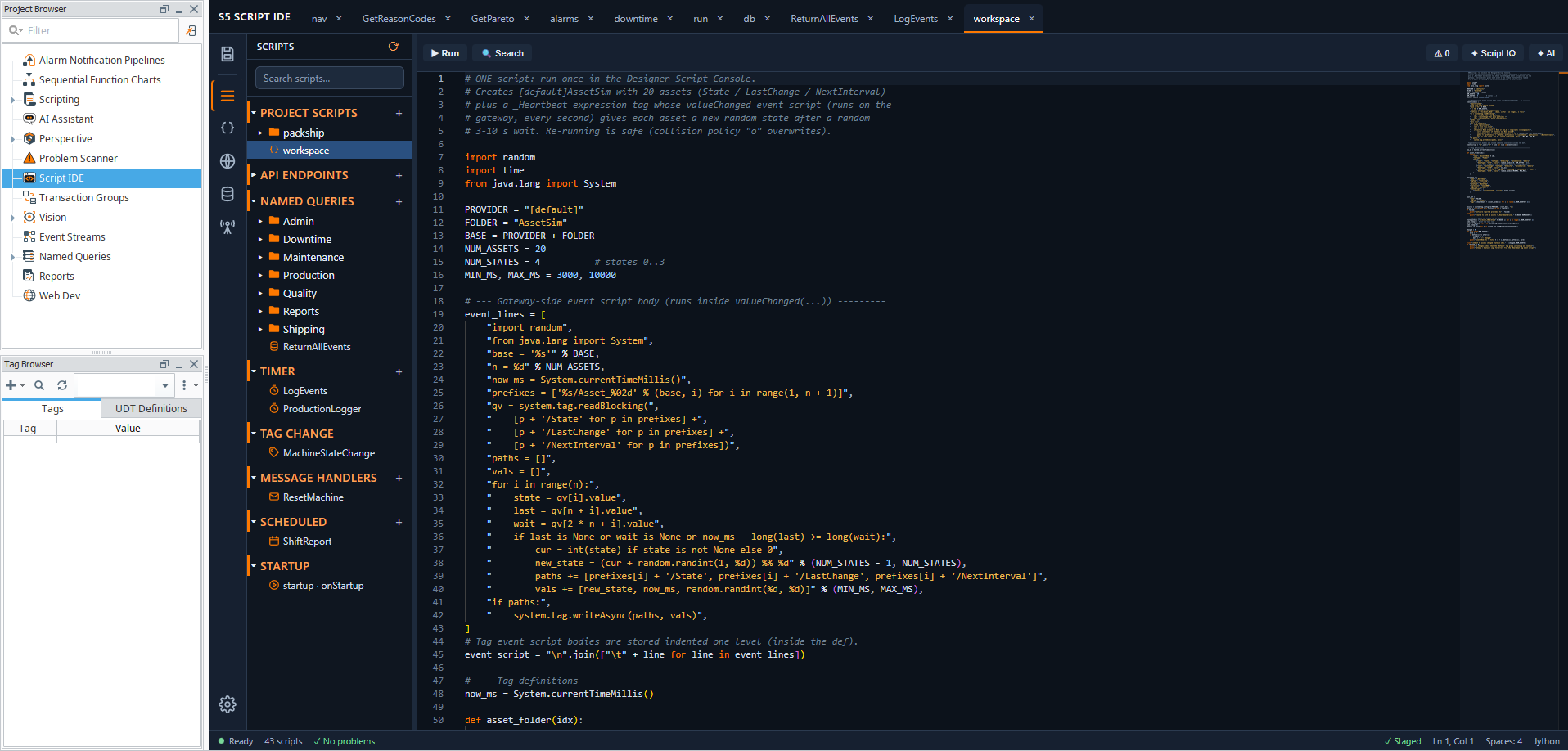
A project script open in the Script IDE workspace.
Activate and manage a Gateway license
A Gateway administrator activates and manages paid and trial keys on the Gateway page, not in Designer.
- Open the Gateway web page and sign in.
- Open S5 Modules > Script IDE. On Ignition 8.3 it is in Platform; on Ignition 8.1 it is in Config.
- Paste the key for that module in Gateway Key and select Activate Gateway Key.
Initial activation requires an internet connection. Offline activation is not available. Trials and dated entitlements retain their fixed expiry. Cloud AI requires connectivity and any AI-provider usage is billed separately.
The workspace
The left column switches between All Scripts, Project Scripts, API Endpoints, Named Queries and Gateway Events. Save All is at the top of the column and Settings at the bottom. The tree beside it lists the resources. Open files appear as tabs.
The toolbar above the editor holds Run, Config, Run Query, Test, Search, the problem count, Script IQ and AI. Buttons appear when they apply to the open file.
On Ignition 8.1, gateway event scripts are not available in the Script IDE.
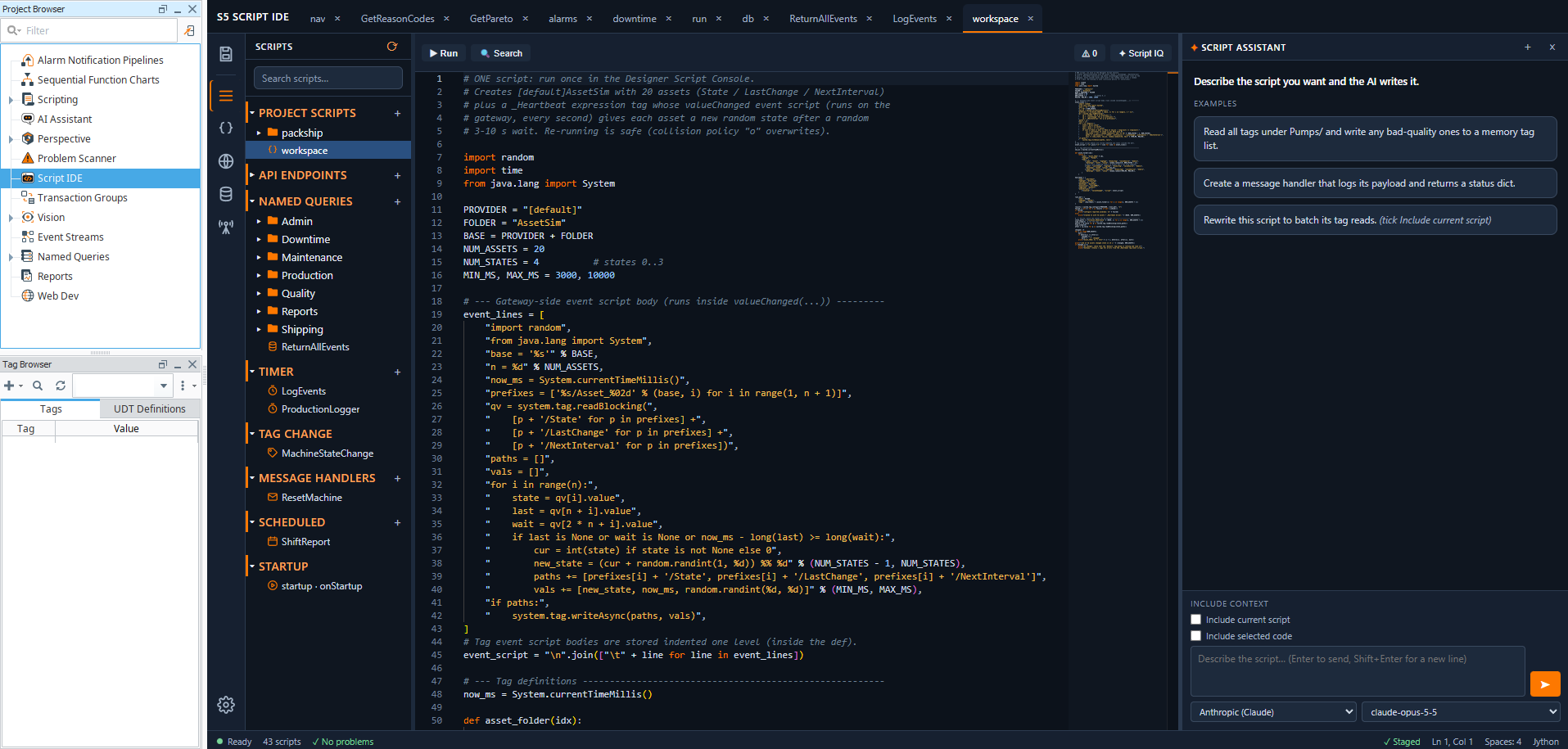
The script tree, editor toolbar and Script Assistant in the full workspace.
Create and manage resources
Right-click in the tree to create, rename, duplicate or delete a resource or a folder. F2 renames the selected item.
You can create project scripts, Named Queries and WebDev endpoints. For gateway events you can create timer, scheduled and message handler scripts. Other event scripts can be edited when they already exist.
Config opens the settings of the open resource: the type, database and parameters of a Named Query, the methods of a WebDev endpoint, or the timing of a timer or scheduled script.
Save Config stages only the configuration fields you changed. Save the project in the Designer to publish them. If the resource configuration changed outside this form while it was open, Save Config refuses the stale form and says changed outside this form: reload it. Close and reopen Config, review the current settings, then reapply your changes.
How saving works
Your edits are staged in the Designer as you type. They reach the gateway when you save the project in the Designer (Ctrl+S in the Designer window). Until then you can still discard them by closing the Designer without saving.
Ctrl+S in the editor stages the open tab at once. Ctrl+Shift+S stages all tabs.
If a script changed somewhere else while you had it open, the Staging refused dialog offers Overwrite with my edits, Reload from project (discard my edits) and Keep editing.
Write code
- Completion offers Ignition
systemfunctions, your own project scripts and names from the open file. Inside a tag function it browses your tag tree as you type a path. In a Named Query it offers the tables and columns of the selected database. - Error checking marks problems as you type. The count is on the toolbar. Some problems offer a quick fix.
- Go to definition and Find references work for your project scripts.
- Find in Files (Ctrl+Shift+F) searches scripts and queries. It needs at least two characters and lists up to 300 matches.
Completion reads tag names and database table names from your gateway while you type. It does not ask first.
Run a script
Run (Ctrl+Enter) runs the open script, or the selected lines, in the Designer. The output appears when the run ends.
A script you run has the same reach as a script in the Designer’s Script Console. It can write tags, change the database and call other systems. Test in a safe environment first.
Stop interrupts a running script. A script that is busy in a tight loop may keep running. Output printed before you stopped is not shown.
Run is not offered for Named Queries or gateway event scripts.
Test a message handler
Test sends a message to a gateway message handler. Enter the payload as fields or as JSON.
| Option | What runs |
|---|---|
| Saved version | The handler saved on the gateway. It runs on the gateway. Anything it prints goes to the gateway log |
| Current edits | The code in the editor. It runs in the Designer and its output is shown |
Testing the saved version runs real gateway code. It does what that handler does.
Run a query
Run Query runs the SQL in the editor against the database selected in the query bar. It runs what you see, not the saved query. Named parameters are filled from the values you enter.
A single SELECT runs at once. Anything else asks you to confirm first, because it may change data or the database structure. After you confirm, it runs for real.
Script IDE displays up to 1,000 rows in its query results. This display limit does not affect Named Query execution elsewhere in Ignition. A running query cannot be stopped from Script IDE.
Script IQ
Script IQ reviews the scripts in the project and lists what it finds, such as risky patterns and old function calls. It reads project scripts, gateway event scripts and WebDev endpoints. It does not use AI and sends nothing anywhere.
Set up your AI provider
- Open Settings and go to AI provider.
- Choose the provider.
- Paste your API key.
- Choose a model. For Anthropic, OpenAI and Google, pick from the list; Refresh list asks the provider what your key can use. For an OpenAI-compatible provider or a local or custom server, add a connection, enter the server address and type the model id; Check asks the server whether it has that model. Not every provider and model combination has been tested.
- Save.
Results vary by model. No AI model is perfect, so check its work.
Your API key is sent only to the provider you chose. On Windows it is stored protected for your Windows account. Where that protection is not available, the key is saved without encryption and Settings tells you so. Remove saved key deletes it.
Usage is billed by your provider, not by S5.
Script Assistant
Select AI on the toolbar, or press Ctrl+Shift+A. Ask a question or describe the script you want. A code block in a reply has a button that inserts it at the cursor.
S5 AI Assistant also uses Ctrl+Shift+A. Use the AI toolbar button to open Script Assistant directly.
Script Assistant answers from your question, the code you include and your project. It can read scripts, Named Queries, Perspective views, tags and their current values, UDTs, and database connections and tables. What it reads follows the switches under Choose what is sent to the AI.
Tick Include current script or Include selected code to send that code with your question. The assistant also receives the names of your project’s scripts, views and database connections so it can refer to them.
The conversation is saved on your computer for each gateway and project and comes back when you open the Designer again. New conversation clears it.
Inline AI edit
Select some code and press Ctrl+K. Describe the change. The Script IDE shows the proposed change as a diff. Apply takes it, Discard drops it.
The script and your selection are sent to the provider. For a very long script, only the part around the selection is sent.
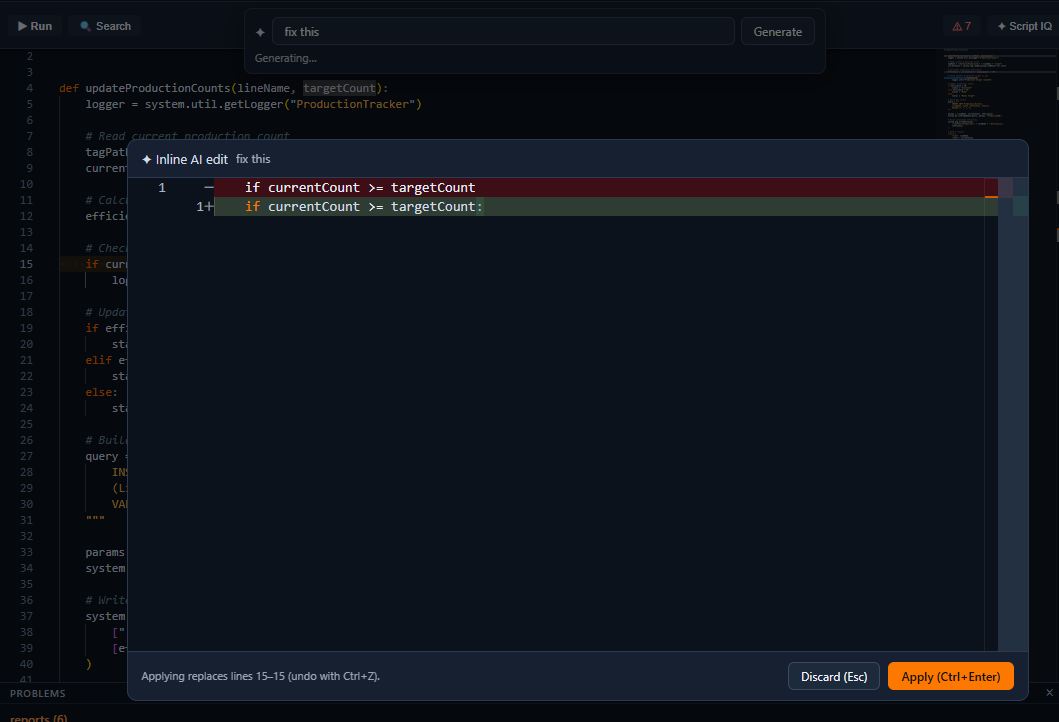
An inline AI edit waiting to be applied or discarded.
Choose what is sent to the AI
Settings > What gets sent to AI has switches for the kinds of project data:
| Switch | Effect in the Script IDE |
|---|---|
| Project structure | Off: no script, view or file names are sent |
| Resource contents | Off: no code is sent, and inline AI edit is unavailable |
| Tag configuration | Off: no tag or UDT configuration is read |
| Live tag values | Off: no current tag values are read |
| Database | Off: no connection names, tables or rows are sent |
The Images switch covers data the Script IDE never sends.
Your configured provider API key authenticates requests to your chosen provider; it is not included as AI prompt content. Your module license key is used for licensing, not AI prompts. AI requests include your messages and the project information permitted by your data controls. Passwords or keys embedded in those messages or permitted project content are not automatically removed. Keep secrets out of content you share with AI.
If you turn a switch off in the middle of a conversation, clear the chat to continue.
The Gateway administrator’s Script IDE data-sharing policy applies to licensed features. Depending on that policy, you may choose your categories, narrow the permitted categories, or find the settings locked. A license cannot bypass the restrictions. AI Assistant has a separate module policy.
The line under each AI reply shows the provider, the model and the token usage.
Keyboard shortcuts
| Keys | Action |
|---|---|
| Ctrl+S | Stage the open tab |
| Ctrl+Shift+S | Stage all tabs |
| Ctrl+W | Close the tab |
| Ctrl+Enter | Run |
| Ctrl+Shift+F | Find in Files |
| Ctrl+K | Inline AI edit |
| Ctrl+Shift+A | Script Assistant; S5 AI Assistant also uses this shortcut |
| F2 | Rename in the tree |
| Ctrl+= and Ctrl+- | Text size |
| Ctrl+0 | Reset text size |
Appearance
Settings > Appearance offers five themes: Dark, Carbon, Dark Blue, High Contrast Dark and Light. The choice applies at once and is kept for your user.
Troubleshooting
| Problem | What to do |
|---|---|
| “License Required” | Ask your Gateway administrator to activate or review the module license on the Gateway page |
| A licensed feature is unavailable | Review the Gateway license status with your administrator. Contact support if your historical entitlement needs help |
| A Gateway key is refused in the Designer | Enter it on the gateway web page |
| The workspace does not load | Open a Perspective view once, then reopen the Script IDE |
| “Staging refused” | Choose Overwrite with my edits, Reload from project (discard my edits) or Keep editing |
| Save Config says “changed outside this form: reload it” | Close and reopen Config to load the current settings, reapply your changes, then select Save Config and save the project |
| My change is not on the gateway | Save the project in the Designer |
| Stop did not end my script | It may be in a tight loop. Close the Designer to end it |
| The AI provider says it is busy | Wait a moment and send again |
| Gateway Events is missing | It is not available on Ignition 8.1 |
To report a problem, open Settings > Help and copy the diagnostics. They contain version and license status information and the module’s last few log lines. The log lines are not automatically redacted, so read them before you share them. Copying diagnostics does not send them to S5.
Support
- Email: support@s5modules.com
- Contact: https://s5modules.com/contact
- Report a bug: https://s5modules.com/report-a-bug
Your purchase includes 12 months of updates and support. Renewal is optional. See https://s5modules.com/pricing for current terms.